GoHighLevel Integration - BrandWell TrafficID
Integrating BrandWell TrafficID with GoHighLevel enables you to streamline your processes and enhance functionality.
Follow these steps to set up the integration:
 Step 1: Enable the GoHighLevel Integration in BrandWell
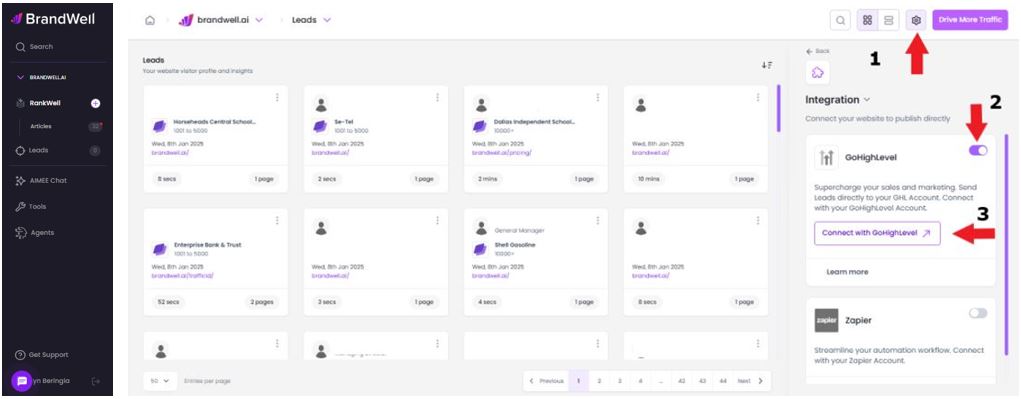
- Access Settings: Open the BrandWell app and click on the gear icon to access settings.
- Navigate to Integrations: From the settings menu, select the "Integrations" option.
- Enable GoHighLevel: Locate the GoHighLevel integration toggle and enable it.
Step 2: Connect with GoHighLevel
- Click Connect: Select "Connect with GoHighLevel" to start the connection process.
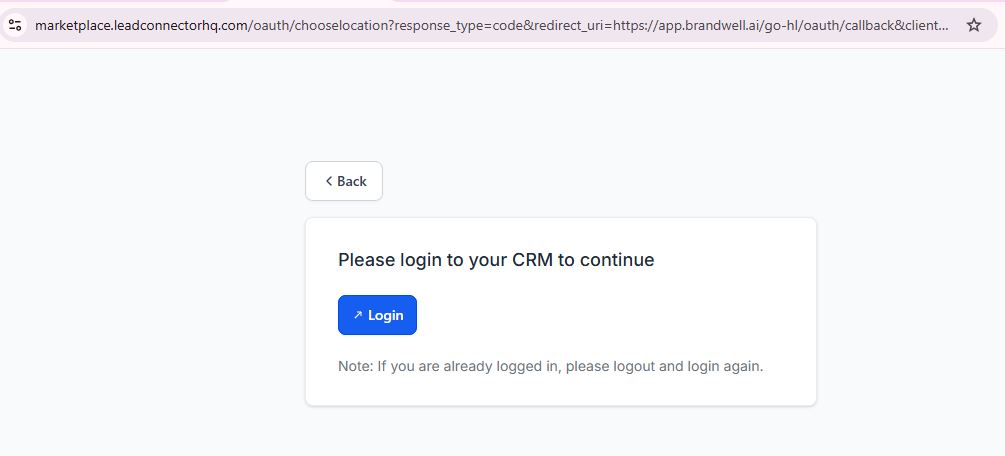
- Log In: Click on "Login" to access your GoHighLevel account.
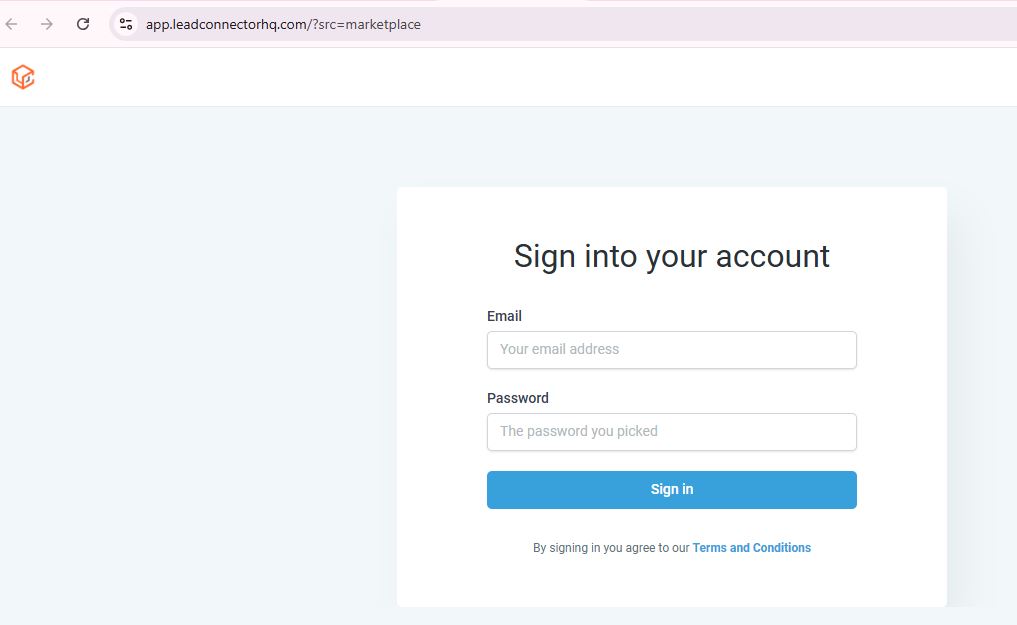
- Enter Credentials: Input your GoHighLevel email and password to proceed.
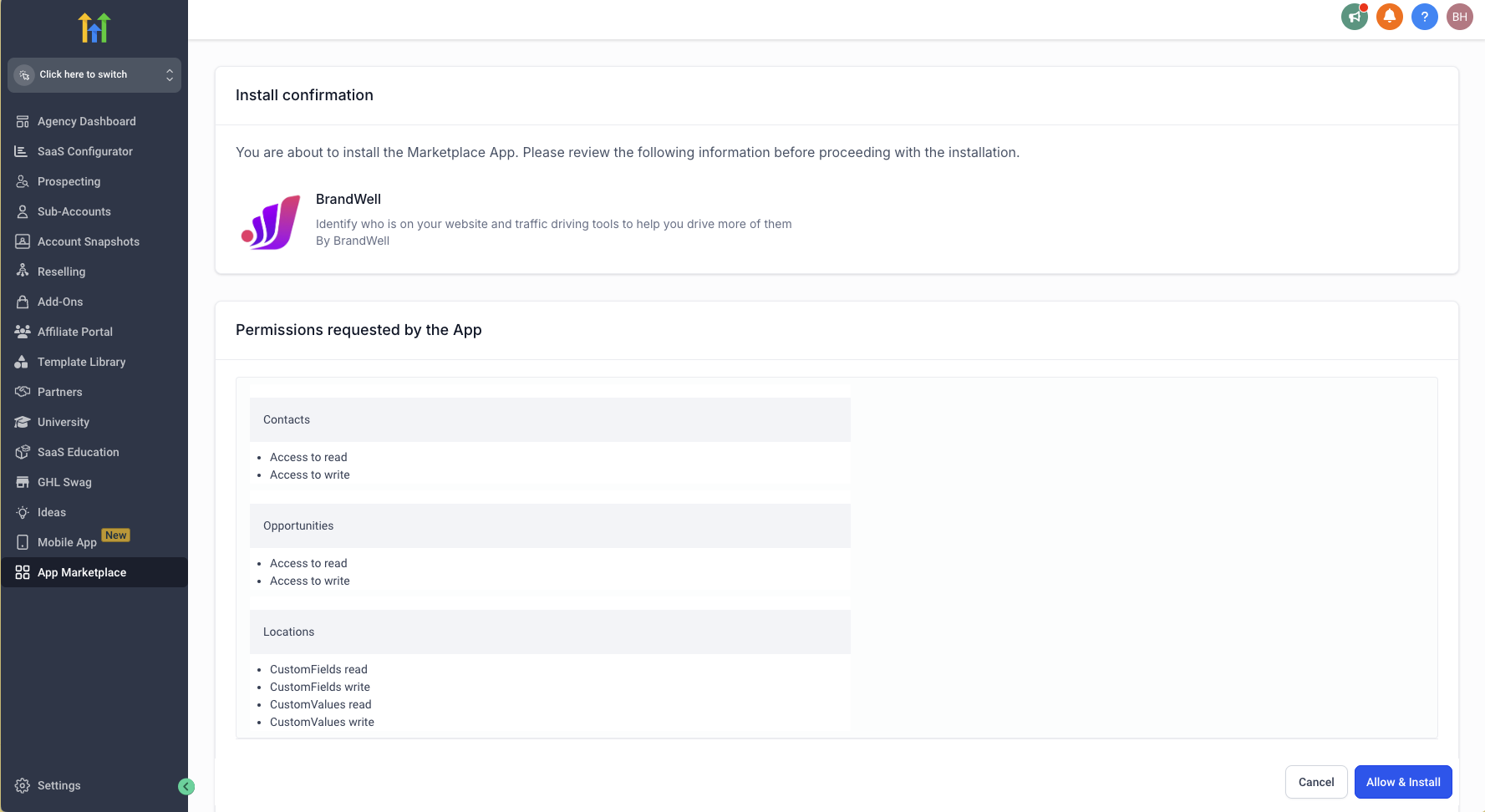
- Install the BrandWell App: Once logged in, locate the BrandWell app and click "Install."
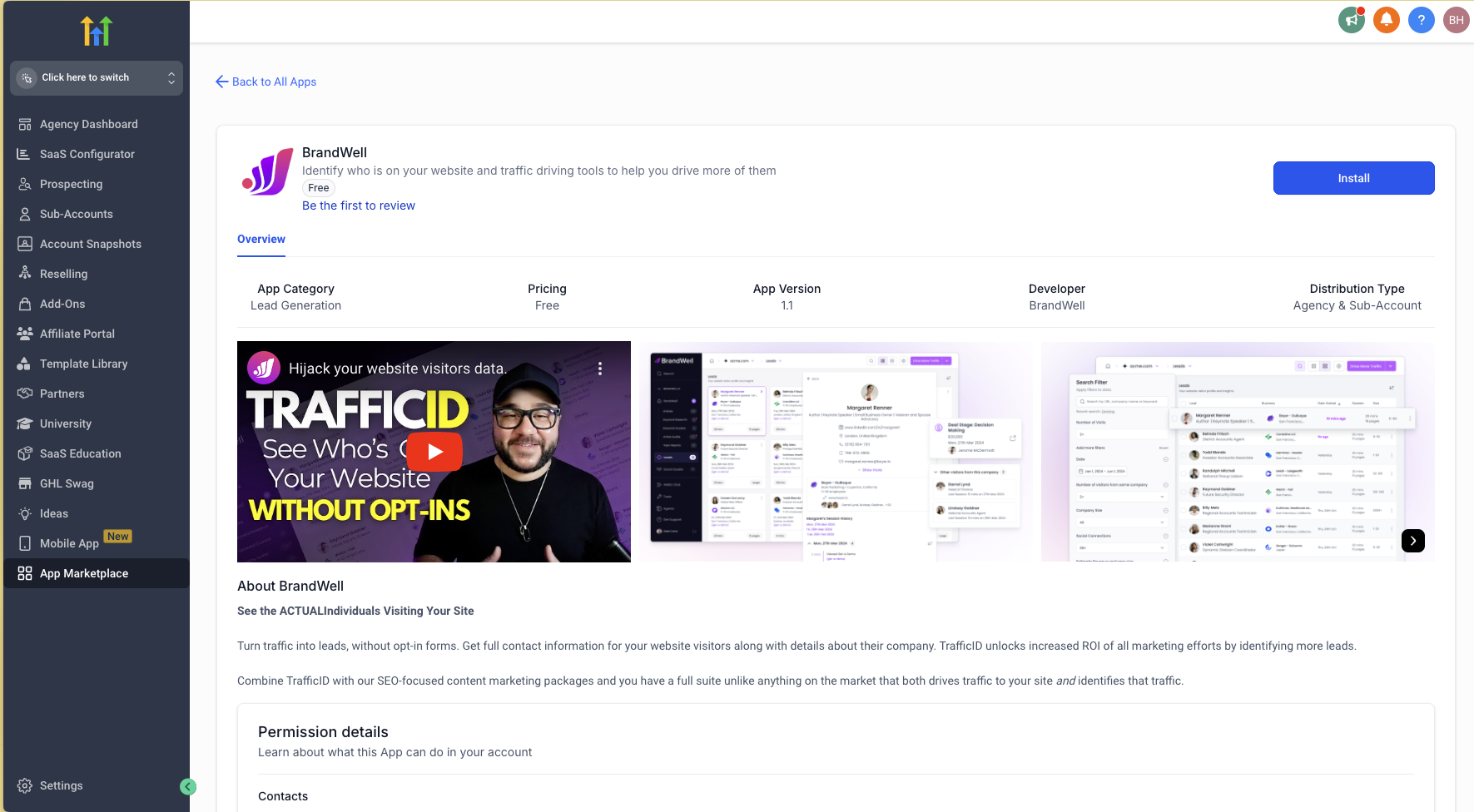
- Review Permissions: Carefully review the permissions requested and then click "Allow & Install."
Step 3: Finalize the Integration
- Select Account: Choose the appropriate account or sub-account to integrate with.
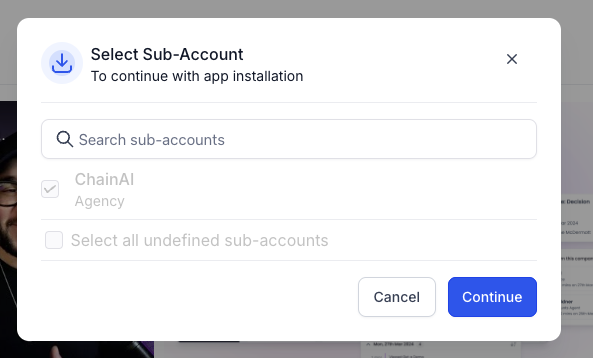
- Complete Setup: Click "Continue" to finalize the integration process.
 Your BrandWell-GoHighLevel integration is now active, allowing you to leverage both platforms for improved efficiency and functionality.
Was this article helpful?
Still stuck?