Zapier Integration - BrandWell TrafficID
Integrating BrandWell TrafficID with Zapier allows you to automate workflows and streamline your processes.
Overview:
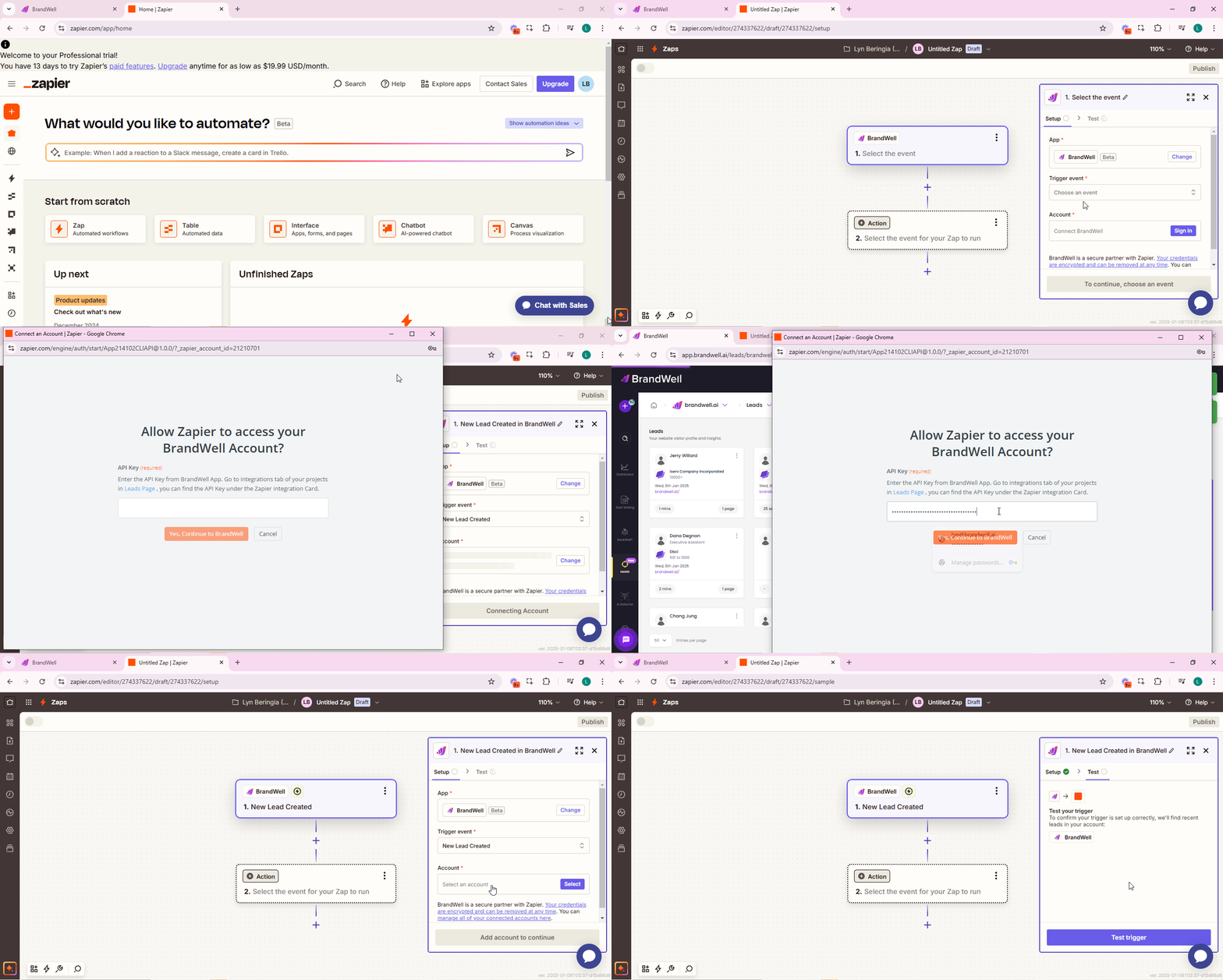
Follow these steps to set up the integration:
 Step 1: Enable the Zapier Integration in BrandWell
- Access Settings: Open the BrandWell app and click on the gear icon to access settings.
- Navigate to Integrations: From the settings menu, select the "Integrations" option.
- Enable Zapier: Locate the Zapier integration toggle and enable it.
Step 2: Set Up Zaps in Zapier
- Open Zapier: Log in to your Zapier account or create a new account if you don’t already have one.
- Start Creating a Zap: Begin the process of creating a new Zap.
Step 3: Configure the Zap
- Select the Trigger App: In Step 1 of the Zap creation process, select "BrandWell" as the app. You can search for "BrandWell" if it does not appear immediately.
- Choose a Trigger Event: Pick the event in BrandWell that will start your Zap (e.g., "New Lead Added").
- Connect Your Account:
Step 4: Complete Your Zap
- Configure Actions and Test: Follow the remaining steps in Zapier to define actions and test the workflow.
Your BrandWell-Zapier integration is now set up, enabling you to automate tasks and improve efficiency.
Was this article helpful?
Still stuck?